

Home |  Products  |  News  |  Downloads  |  Purchase  |  Forum  |  Support  |  Knowledge Base  |  FAQ  |  Contact Us


NetAnalysis Screenshots


The following images are a selection of screen shots showing NetAnalysis in action.  Click on the thumbnail to see the full sized screen.


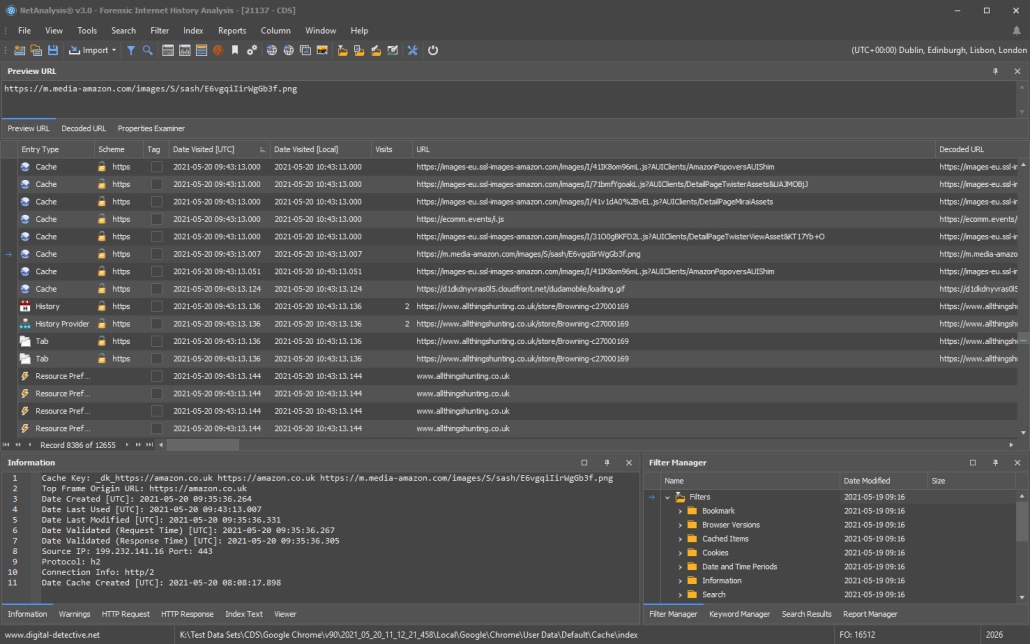
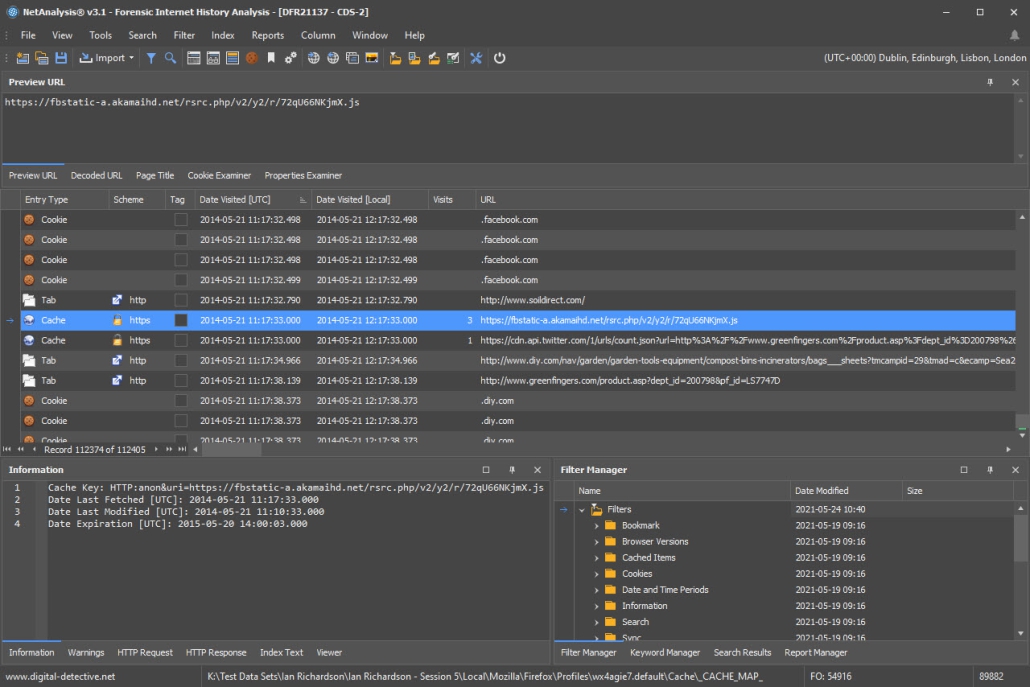
Normal Analysis Window


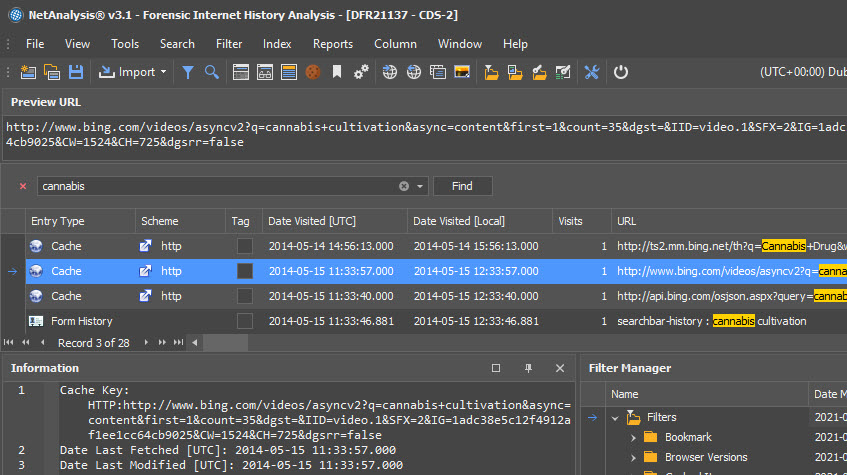
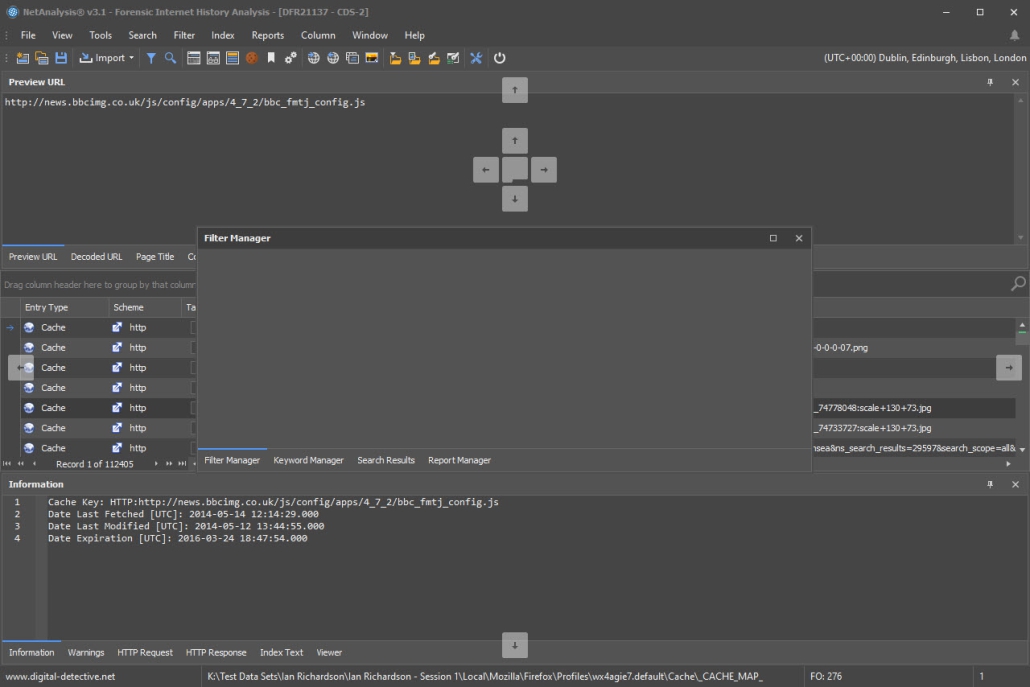
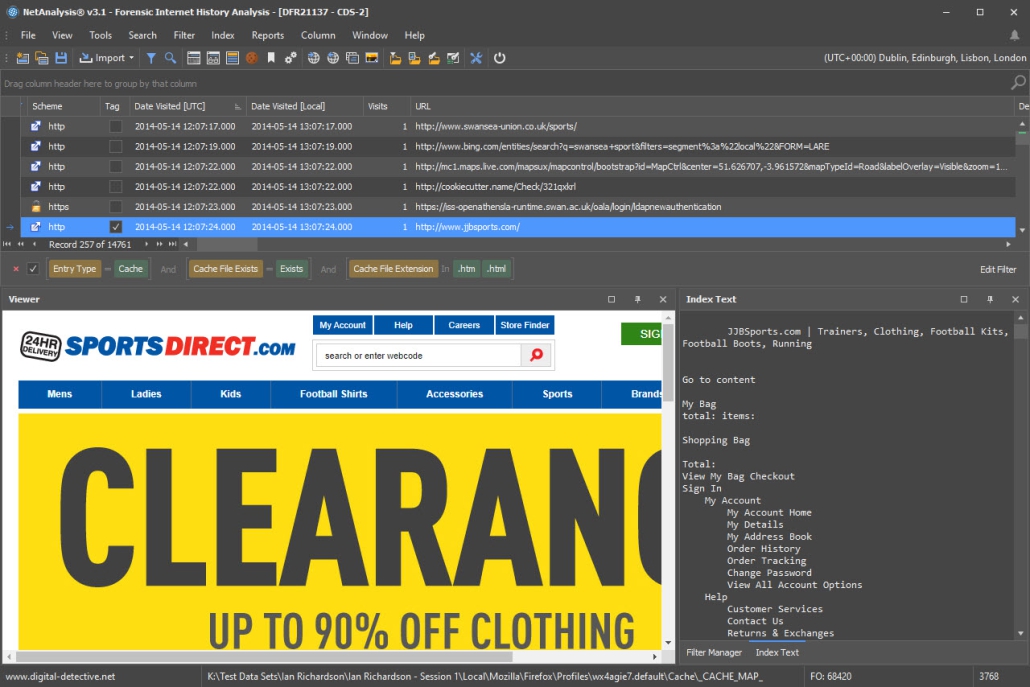
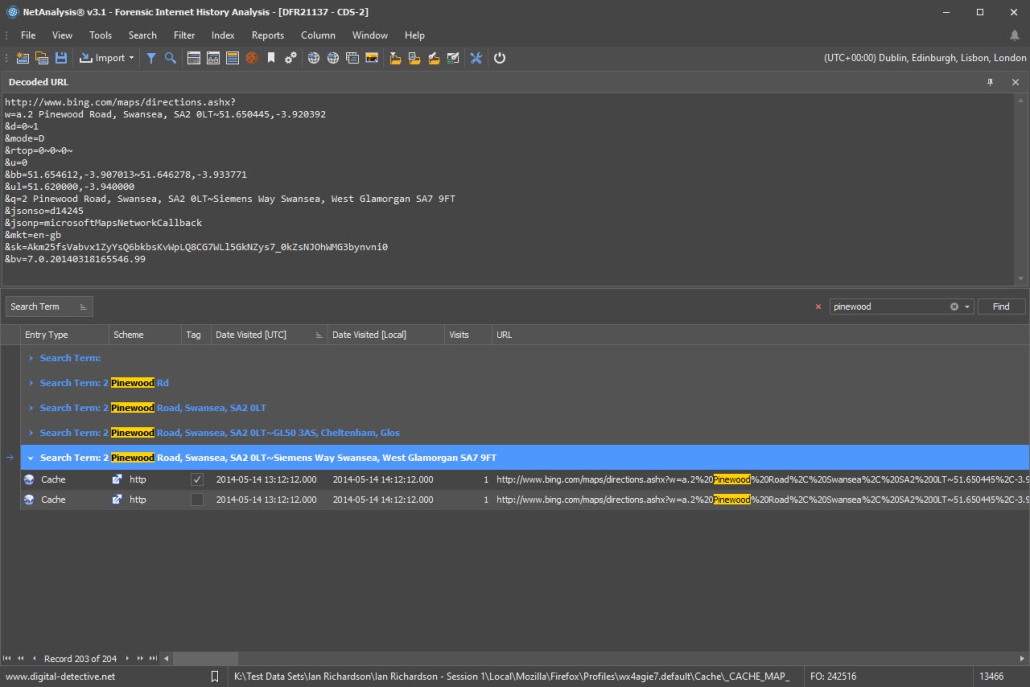
This window shows NetAnalysis with the data already added.  The URL View window at the top of the screen is activated (this can be switched on and off by the examiner).  This allows the forensic examiner to view long URL records with ease.  This screen also shows a highlighted keyword which has been searched for by the examiner.


Also shown in this screen is the examiner adding a bookmark to a record.  These bookmark comments are shown in the Advanced report when evidencing browser activity.


Digital Detective's NetAnalysis with URL View Window

Click on the image to enlarge 


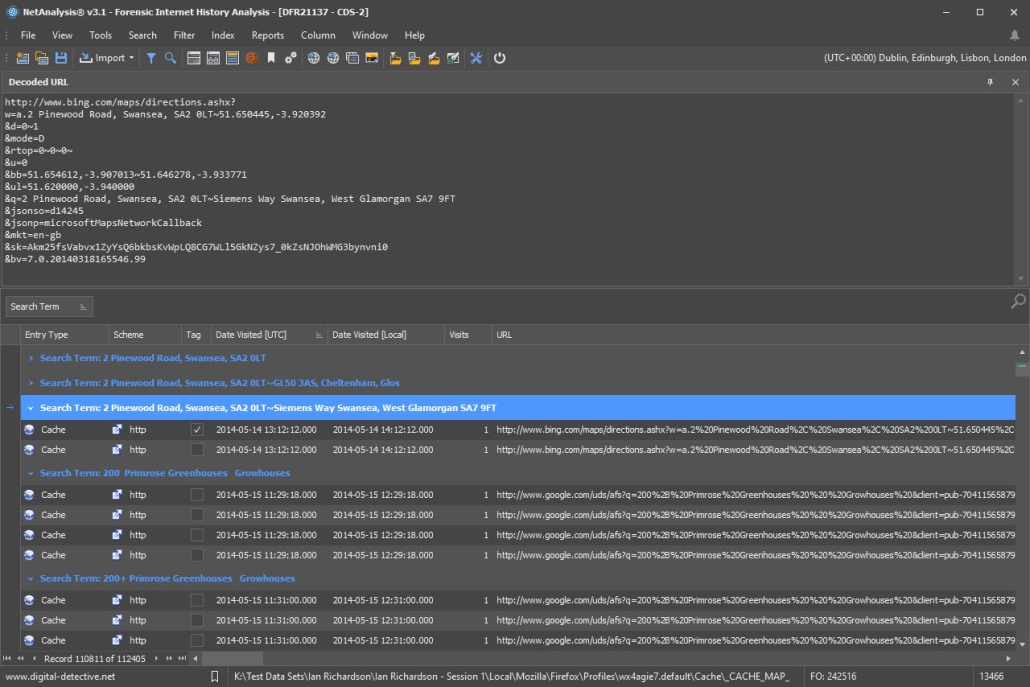
Normal Analysis Window with Additional Analytical Views


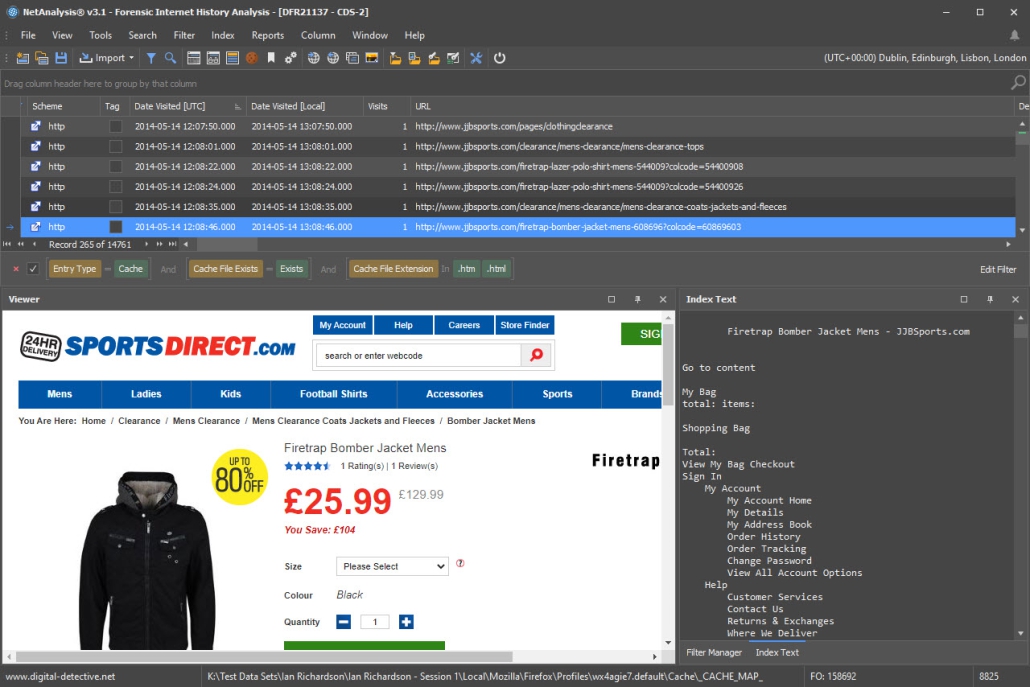
This is the main NetAnalysis window with the Host List window visible.  The Host List window outlines the domains visited by the user.  Selecting a domain in the left hand pain with filter the records in the main window.


Digital Detective's NetAnalysis showing Host View window

Click on the image to enlarge 


Cookie Analysis Window


This window shows the Cookie Viewer activated, with the examiner selecting a cookie record in the main grid.  If the cookie records are exported from your main forensic tool, along with the index files, NetAnalysis will be able to show the content of those files as well.


Digital Detective's NetAnalysis showing the Cookie Decoder

Click on the image to enlarge 


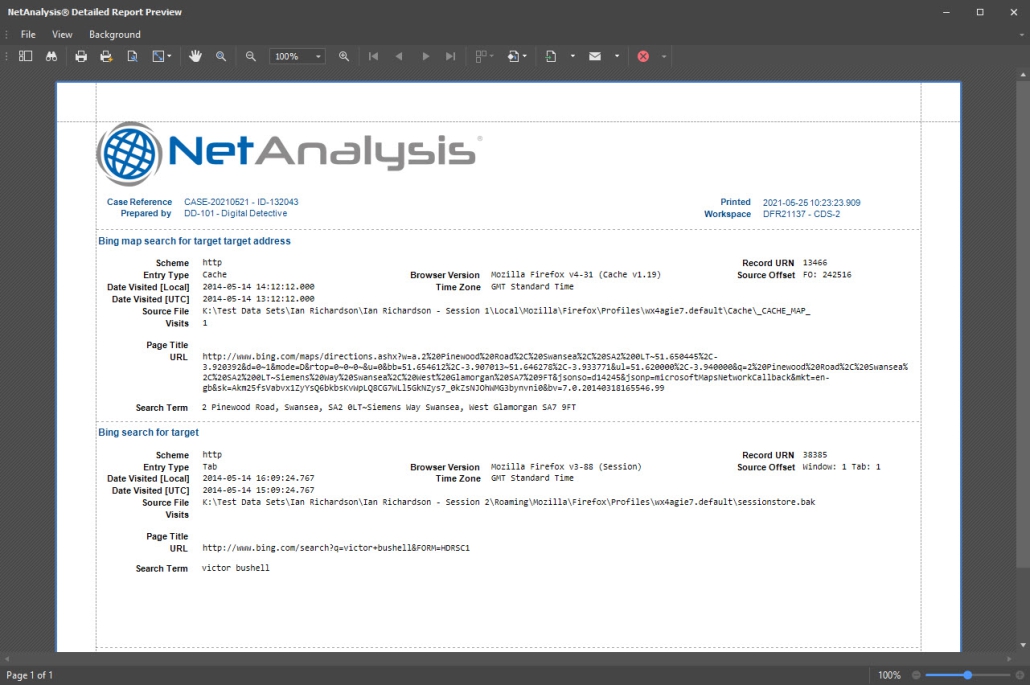
Reporting Window


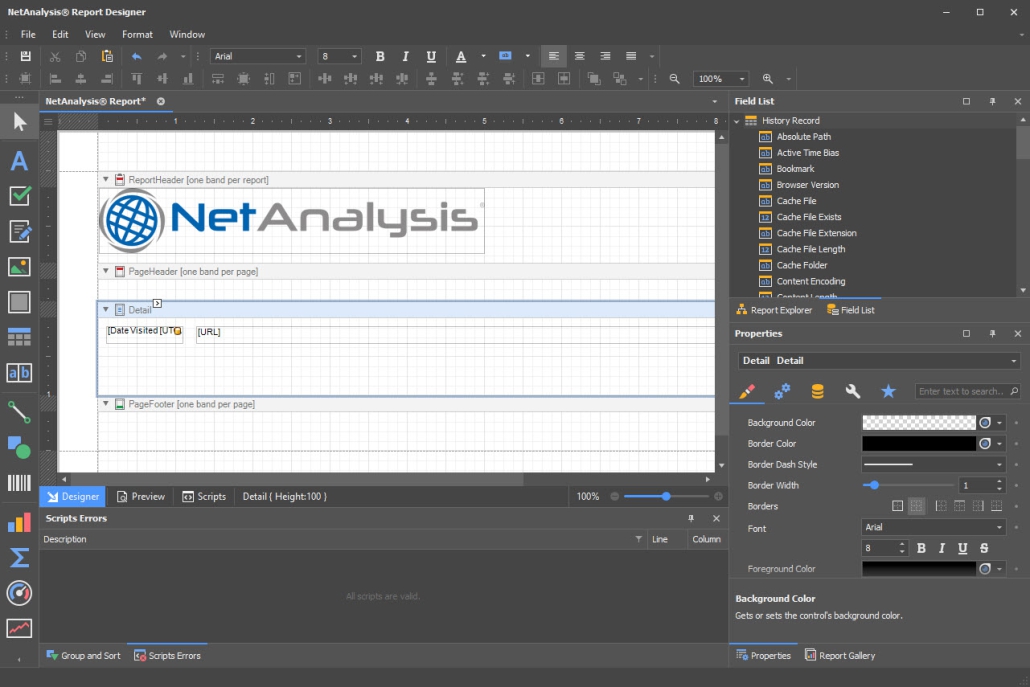
NetAnalysis has a number of powerful, built-in reports.  This window shows the Advanced report with a breakdown of all the appropriate fields you would need.


Digital Detective's NetAnalysis showing the Advanced Report

Click on the image to enlarge 


HstEx v3 - History Extractor


NetAnalysis comes with its own separate tool for extracting deleted data.  Regardless of which product you use, HstEx means that you have access to the deleted data as well. 


This new version can extract directly from many of the standard image files available such as:  Expert Witness compressed format as used by Encase, segmented DD images, Access Data FTK imager files and Smart images.


This window shows HstEx v3 running against an EnCase image.


Digital Detective's HstEx v3 running against a EnCase image

Click on the image to enlarge 


Privacy Policy | Copyright© 2001-2010 Digital Detective Group Ltd